Roll Bulwark out to an organisation
This is the order to work in when you give Bulwark to a whole organisation. Stalwart holds the users, groups and mailboxes and checks who signs in. Bulwark is the client people use, and it adds what the organisation decides for them: the user policy, branding, signatures, warnings and sign-out times. Each step links to the page with the details, and says when it needs Stalwart 1.0, a Stalwart Enterprise licence or Bulwark (not Lite).
In Stalwart
- Shared mailboxes as groups: for every address several people answer from, such as
info@orsupport@, create a group in Stalwart with that address and add the people who answer it as members. Each member then sees the group's mailbox under Shared in Bulwark (shared mailboxes), and Bulwark's group entries match people by the group's address (domains and groups). Groups without a mailbox are invisible to Bulwark. - An OpenID Connect provider for sign-in: pick one of these two.
- Stalwart's own provider: it works on Stalwart 0.16 and 1.0 without a licence. Bulwark registers itself with it in the Bulwark steps below.
- An external identity provider, such as Keycloak or Authentik. Bulwark hands the provider's token to Stalwart, so Stalwart has to accept it: add an OpenID directory for that provider in Stalwart and make it the default directory. One directory for the whole server needs no licence. Several directories, for example one per domain, need a Stalwart Enterprise licence, because Stalwart only picks a directory per domain under Enterprise. Stalwart then holds no password for these users, so they change their password and two-factor settings at the provider, not under Settings > Security in Bulwark.
- Directory queries, on Stalwart 1.0: Stalwart 1.0 turns them off by default. While they are off, users can only pick their groups and people who already shared something with them: in the delegates dialog, when sharing a folder, calendar or file, and in the team inbox's Assign to…. Free/busy for attendees is limited the same way. Turn on Allow Directory Queries under Settings > Files & Sharing > Sharing in Stalwart's admin. Stalwart 0.16 allows directory queries already. See Delegates.
- Archiving, if users should recover deleted mail: Recover deleted items needs a Stalwart Enterprise licence and archiving turned on: under Data Retention > Archiving, set Archived Items to how many days deleted mail is kept. Mail deleted before archiving was on can't be recovered, so turn it on before people start.
Setting up Stalwart covers what every install needs from Stalwart, such as CORS.
In Bulwark
-
Install and run the setup wizard: start Bulwark without
JMAP_SERVER_URLand open it in a browser. The wizard asks for a one-time setup token, which the container prints to its log in the SETUP REQUIRED block (docker logs bulwark). It expires after an hour; restarting the container prints a new one. The wizard then sets the Stalwart server, OAuth, the session secret, branding and the admin password. See Installation. Afterwards a Stalwart administrator can sign in to the admin console at/adminwith their own mail account; see the admin console. -
Register Bulwark with Stalwart: on Admin > Authentication, the Auto-configure OAuth card's Set up automagically button registers Bulwark as an OAuth client in Stalwart and fills in the settings. Run it while you are signed in to the webmail with a Stalwart account that has admin rights. On Stalwart 1.0, run it once even if you don't want the SSO button: it registers Bulwark as a first-party client, which users need to reach their account security settings, and it registers a client for the phone app. For an external provider, set its issuer URL instead. To hide the password form, set
OAUTH_ONLY=true. See Authentication. -
Keep the session secret in a file: without
SESSION_SECRET, Bulwark generates a secret on first start and keeps it in the admin state directory. For an organisation, manage it yourself and hand it in as a Docker or Kubernetes secret. It encrypts every sign-in cookie, so a new secret signs everyone out, and several replicas need the same one.openssl rand -base64 32 > session_secretservices: bulwark: environment: SESSION_SECRET_FILE: /run/secrets/session_secret secrets: - session_secret secrets: session_secret: file: ./session_secret -
A read-only config volume, if you want one: to keep
config.jsonandpolicy.jsonin git and out of reach of the admin console, mount the config directory read-only and set:ADMIN_CONFIG_DIR=/app/data/admin ADMIN_STATE_DIR=/app/data/admin-state ADMIN_CONFIG_READONLY=trueSet
ADMIN_STATE_DIRtoo: the audit log, the setup token and login times must stay writable. The admin console then can't save and says why. Make changes on a test instance, exportpolicy.jsonthere and commit it. See admin storage and the policy file. -
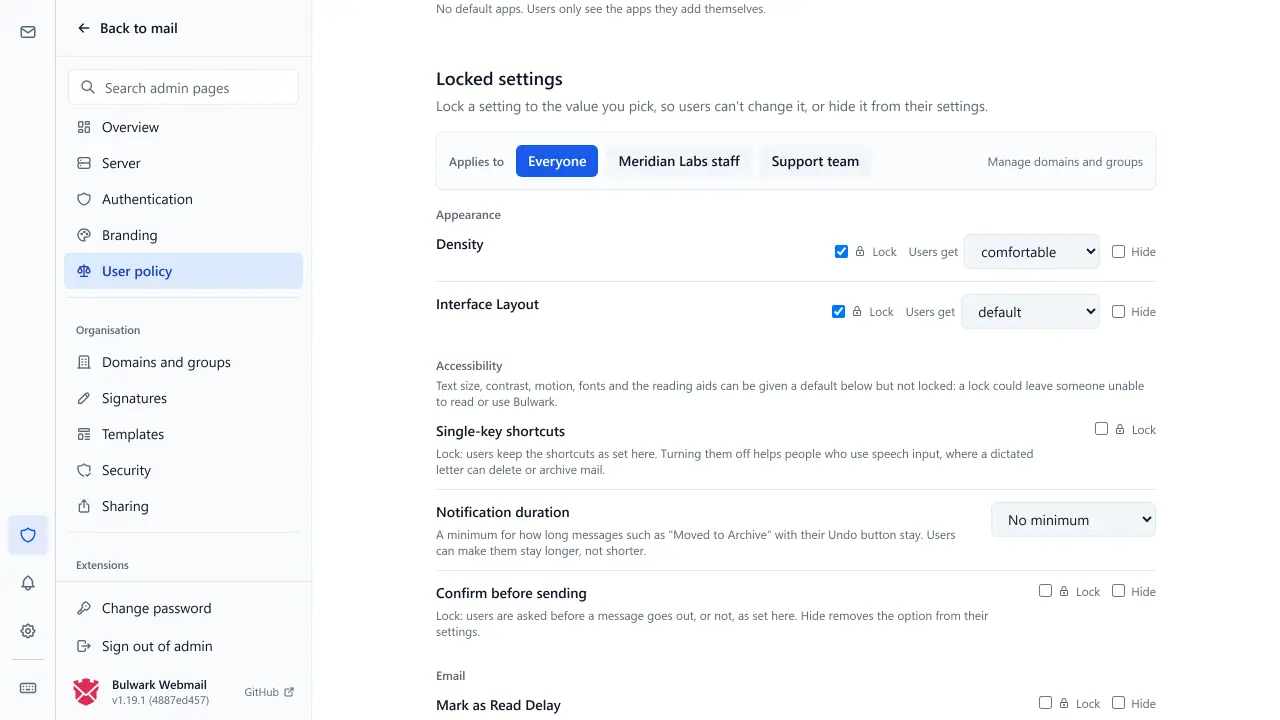
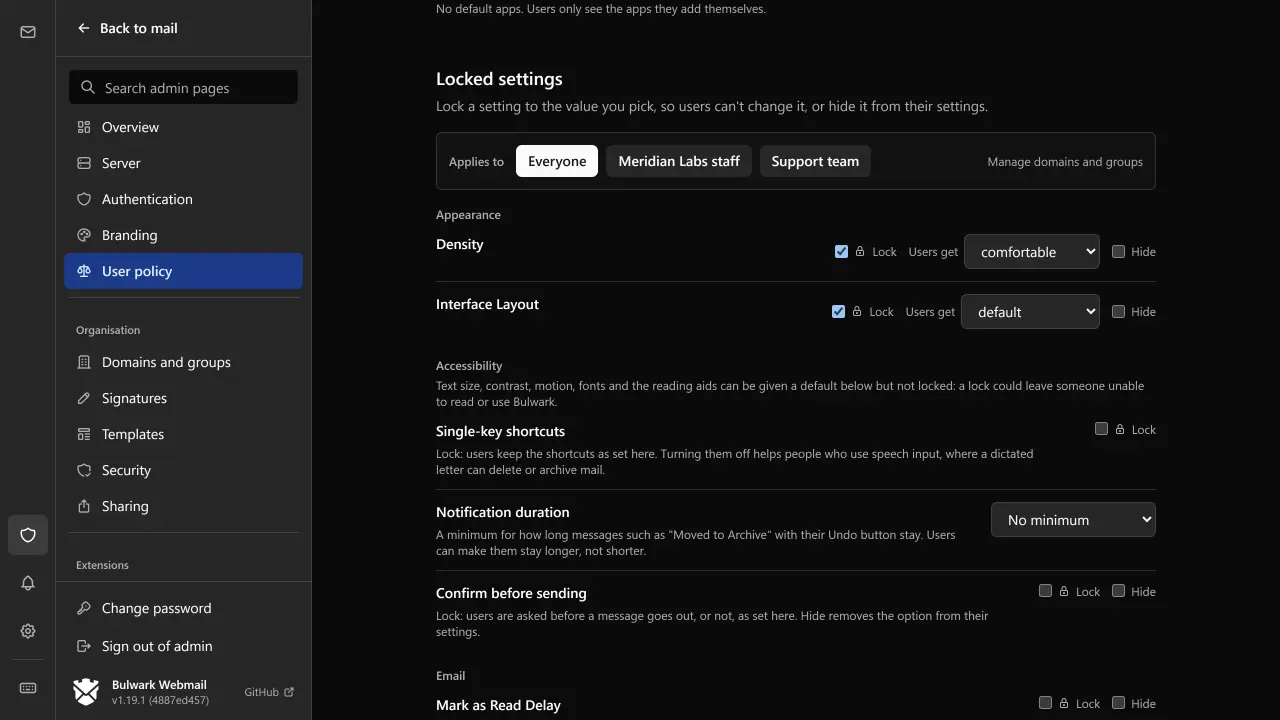
The user policy: Admin > User policy sets which features users get, the push relays they may pick, the sidebar apps everyone gets and, under Locked settings, the settings users can't change. 26 settings can be locked to a value or hidden; users see Set by your organisation next to them. Every other setting can be preset, so users start with your value and can change it. See Organisation settings.
-
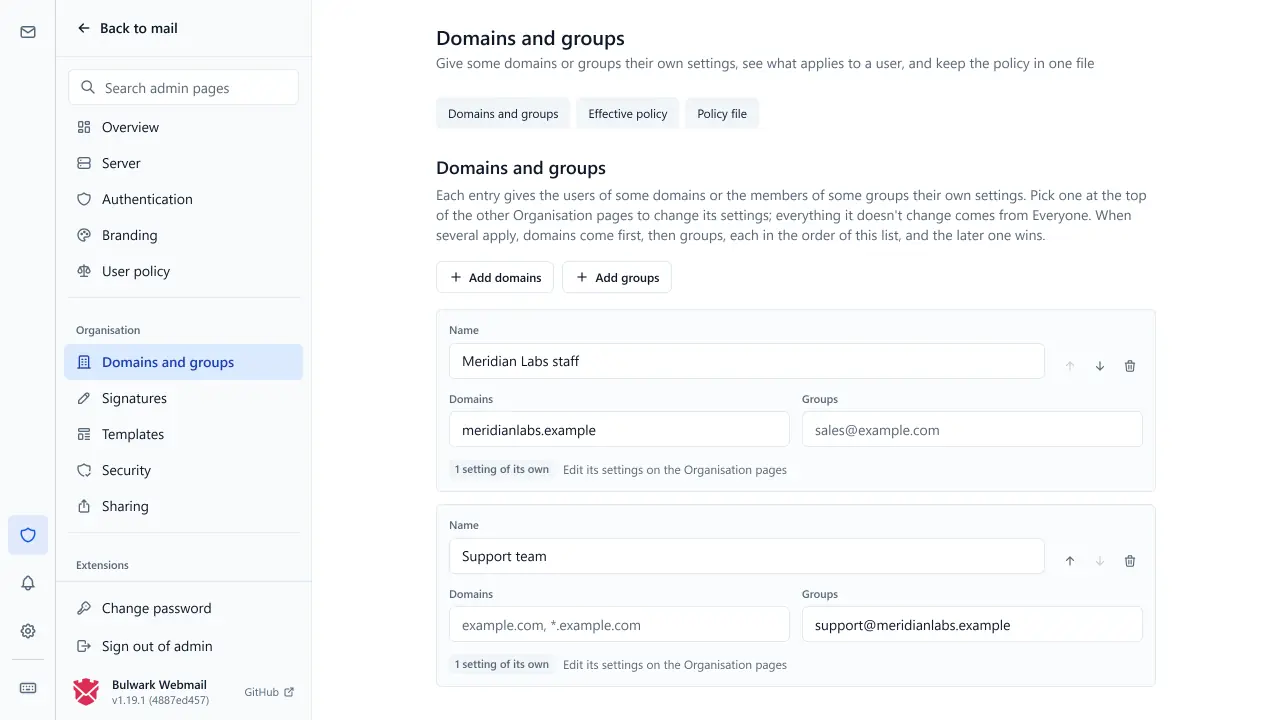
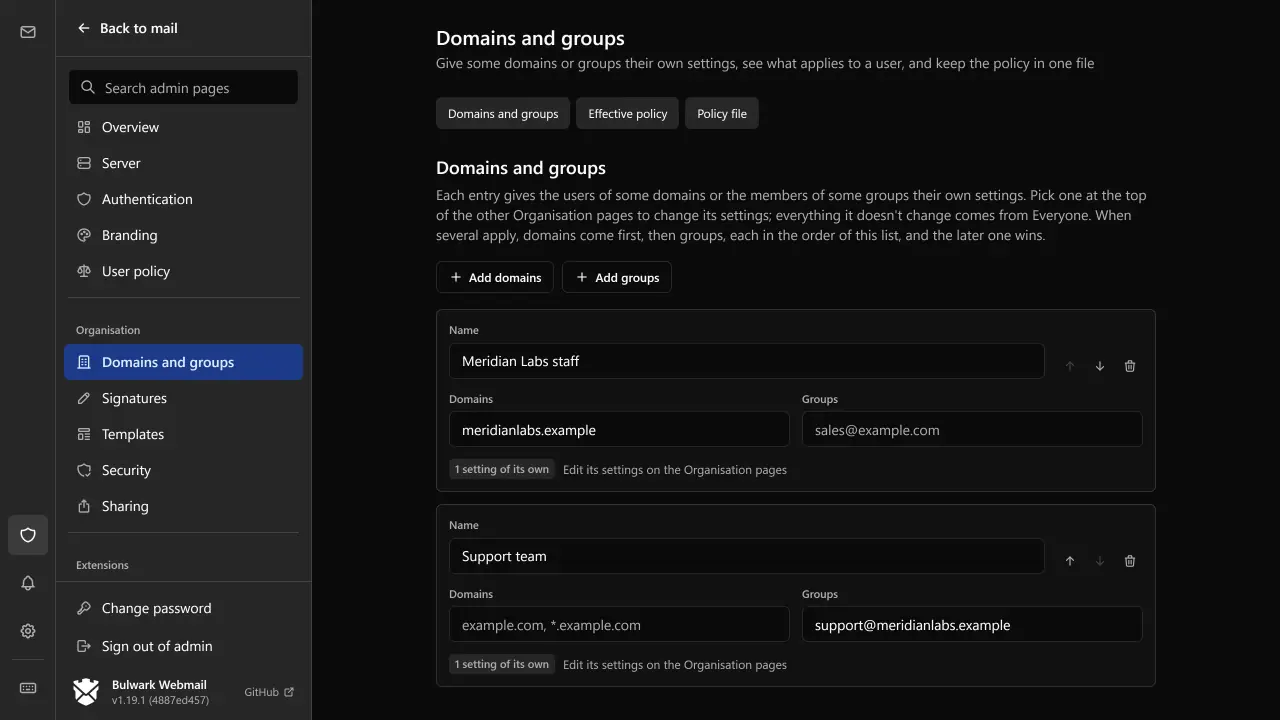
Settings per domain and group: on Admin > Organisation > Domains and groups, add an entry for each domain or Stalwart group that needs its own settings, then pick it in the Applies to bar on the other Organisation pages. Before you save, type a real address and its groups into Effective policy: it lists every setting that isn't at Bulwark's default and the entry that set it. See Domains and groups.
-
Branding: Admin > Branding sets the name, logos, favicon, home screen icon and company details. Branding follows the web address people open Bulwark on (an exact host or
*.example.comunder Scope), not their mail domain. See Customization. -
Signatures and templates: Admin > Organisation > Signatures sets the organisation signature, filled in with each user's details, and a legal disclaimer, per domain or group and optionally locked. Admin > Organisation > Templates gives everyone a read-only template library. Both only reach mail sent from Bulwark. Team templates in a shared mailbox need Stalwart 1.0. See Signatures and disclaimers and Templates.
-
External mail: under Admin > Organisation > Security > External mail, Label external senders marks mail from outside, and Confirm external recipients asks before a message or invitation goes outside. Add partner companies under More organisation domains. See External mail.
-
Sign-out times: under Admin > Organisation > Security > Sessions, set Sign out after inactivity, Maximum session length, or both. Both are off until you set them. See Sign-out times. On shared or classroom computers, also show the Remember me box with
LOGIN_SHOW_REMEMBER_ME=true: by default Bulwark remembers every sign-in, so the next person at the computer would find the last one still signed in. -
Third-party traffic: to keep Bulwark and the browsers from contacting outside services, turn on No third-party traffic under Admin > Organisation > Security > Third-party traffic, or set
NO_THIRD_PARTY_TRAFFIC=true. This also drops the hosted push relay, so add a relay of your own under User policy > Push relays first if people want notifications. See Third-party traffic. -
Usage stats: off by default. Bulwark sends nothing until an admin turns them on under Usage stats in the admin console. To keep them off for good, set
BULWARK_TELEMETRY=off, which greys out the switch. See Anonymous usage stats. -
Accessibility and help links: under Admin > Branding > Company information > Accessibility and help links, add your accessibility statement, where to report a barrier, a help page, and Easy Read and sign language pages. Bulwark shows them on the login page, in the settings sidebar and in the account menu. Accessibility for admins covers the defaults you can preset, and the accessibility statement has a template.


Before people sign in
- Test accounts per group: create a test account in Stalwart for each domain and group entry, sign in with each, and check what it gets: its shared mailboxes under Shared, Set by your organisation next to the locked settings, the signature in a new message, the External label on outside mail, and the countdown before a sign-out. Compare what you see with Effective policy for the same address.
- Someone who watches releases: only the latest Bulwark release gets security fixes. Name the person who follows the releases and upgrades. Bulwark shows Stalwart administrators a dot on the Admin entry when a new release is out, and the admin console's Updates page shows the running version. See Security fixes and updates and Updating.
Bulwark Lite
Bulwark Lite has no admin console and no setup wizard. Write config.json and policy.json by hand, or export the policy from a Bulwark (not Lite) instance, and put both next to index.html. The Organisation settings, including domain and group entries, work the same, but every visitor can read policy.json. Branding per web address, linking the phone app, plugins such as the team inbox, and the server-side check of the maximum session length need Bulwark (not Lite). The Stalwart steps are the same.
Next step
Set up your first entries on Domains and groups. For an overview of what Bulwark offers an organisation, see Bulwark for organisations.