Authentication
Users sign in with the email credentials that already exist in Stalwart. There are three ways to do it. Basic auth is the default, OAuth 2.0 / OIDC handles single sign-on, and app passwords cover the clients that understand neither.
Basic authentication
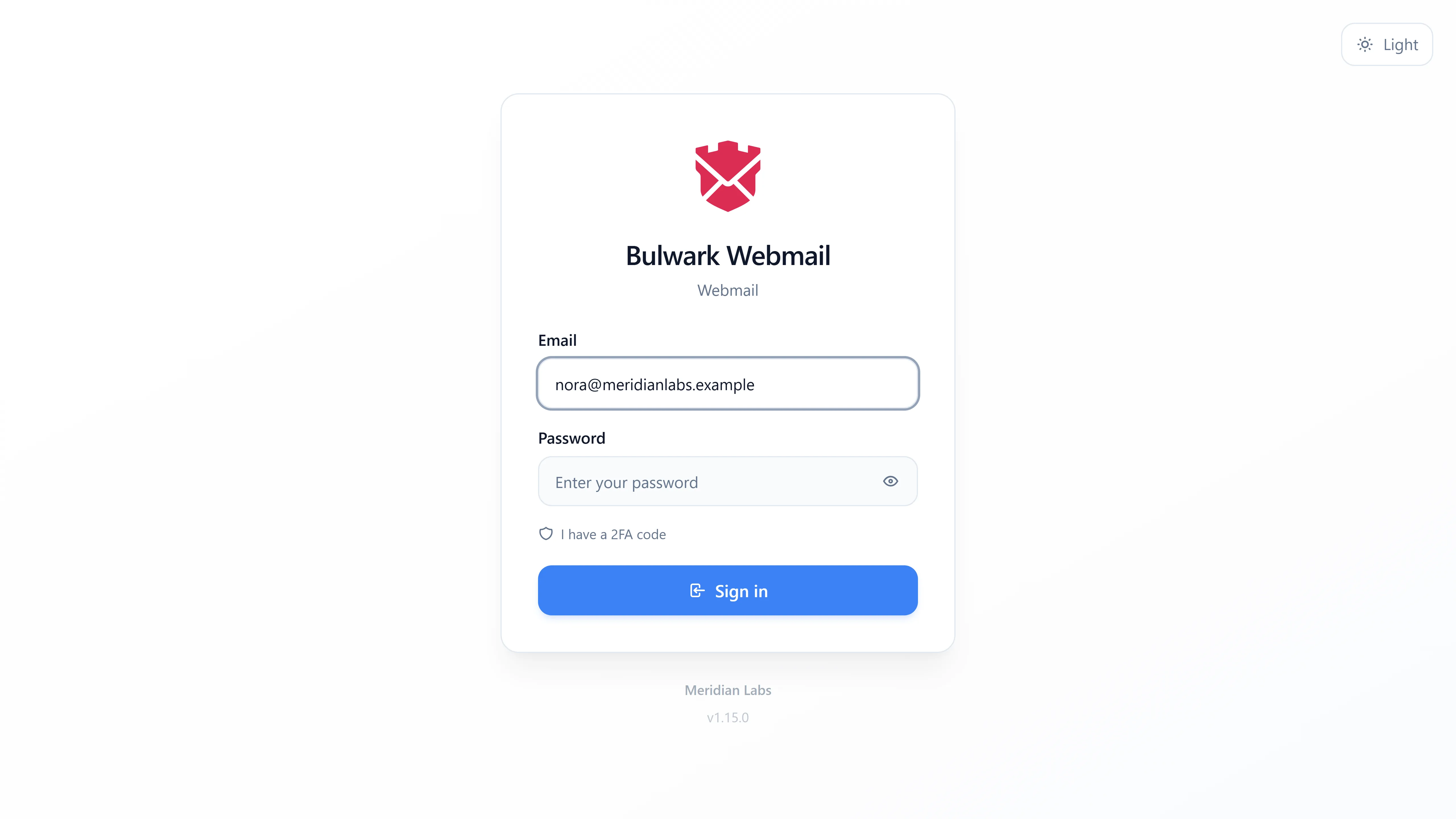
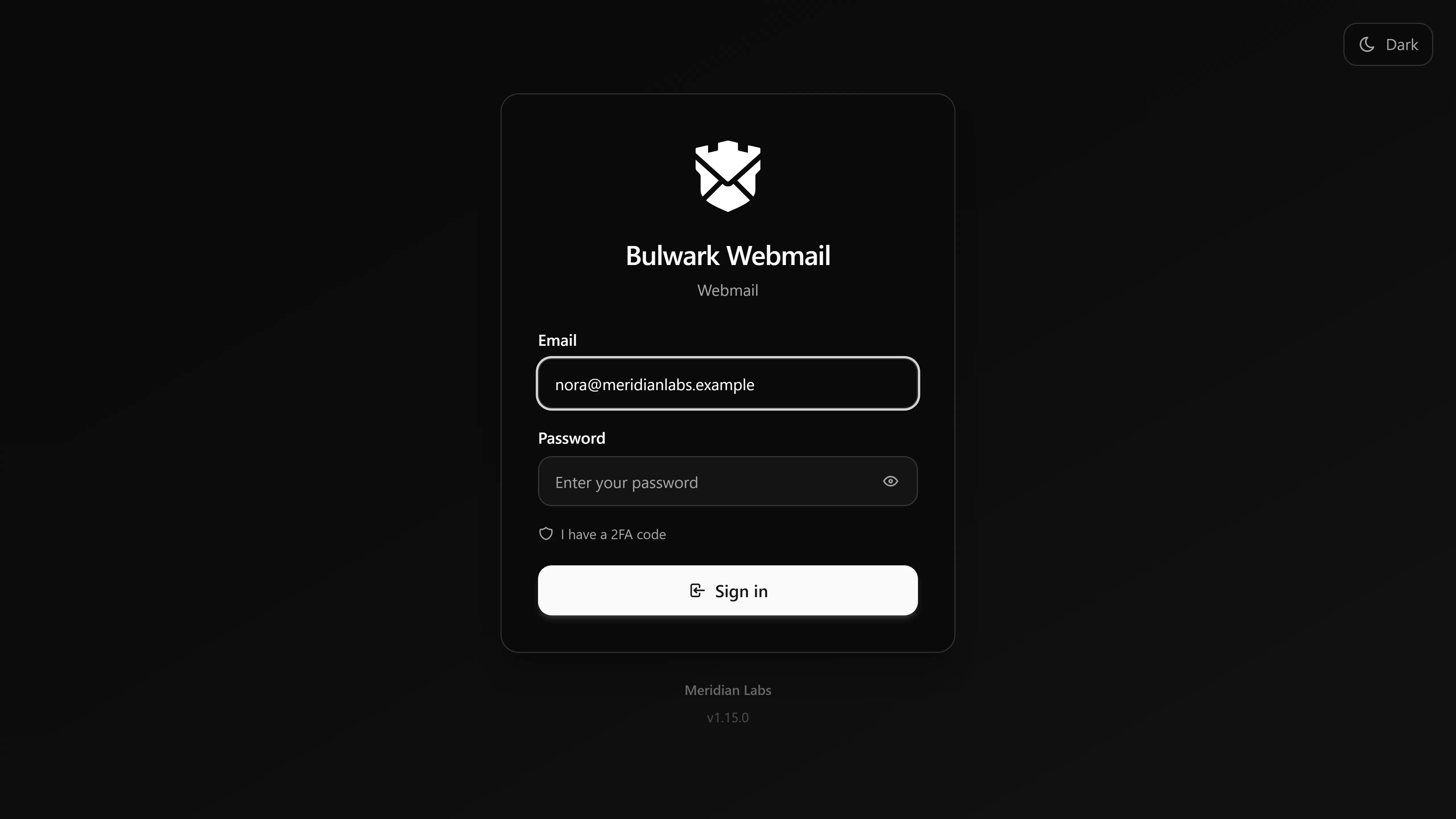
Users enter their email address and password, and Bulwark checks them against Stalwart's user database through the JMAP authentication endpoint.
No password is written to disk anywhere on the Bulwark side. Sign-ins are remembered for 30 days in an encrypted cookie; see Remember me below.
Changing the password from Bulwark
- Log into Bulwark.
- Open Settings → Security → Change Password.
- Enter the current password, then the new password twice.
- Click Change Password.
If the section is missing or you receive an error, the administrator hasn't enabled the required Stalwart permissions. Required toggles in Stalwart:
- Modify user account information - master switch for account changes.
- Manage account passwords - allows password change via JMAP.
- Modify user identities via JMAP / Retrieve user identities via JMAP / Track identity changes via JMAP - for identity sync in the composer.
See Account Security for the full permission matrix.
OAuth 2.0 / OpenID Connect
OAuth2/OIDC with PKCE handles single sign-on. Run it alongside basic auth, or set OAUTH_ONLY=true to run it instead.
App passwords
Plenty of clients never learned OAuth. IMAP and SMTP clients want a username and a password, and so does most CalDAV software. Users generate a separate credential for each of them from Settings → Security → App passwords.
Each app password can carry an optional IP allowlist, so a credential handed to a backup box only works from that box. App passwords go through Stalwart's JMAP x: methods and need Stalwart 0.16.6 or newer, or 1.0.
Configuration
Add the following to your .env.local:
# Enable OAuth login (shows "Sign in with SSO" button)
OAUTH_ENABLED=true

# OAuth client ID registered with your identity provider
OAUTH_CLIENT_ID=webmail

# OAuth client secret (optional, for confidential clients)
OAUTH_CLIENT_SECRET=your-client-secret

# Or: read the secret from a file (Docker / Kubernetes secrets)
# OAUTH_CLIENT_SECRET_FILE=/run/secrets/oauth_secret

# To only allow OAuth login (hides username/password form):
OAUTH_ONLY=true

# Optional: customize requested scopes
# OAUTH_SCOPES="openid profile email offline_access urn:ietf:params:jmap:core"
# OAUTH_EXTRA_SCOPES="custom-audience-scope"
Endpoint discovery
Bulwark discovers the endpoints from /.well-known/oauth-authorization-server or /.well-known/openid-configuration, so you don't configure them by hand.
Stalwart 1.0 as the provider
When Stalwart signs users in itself, the quickest setup is Auto-configure OAuth on the admin Authentication page (see the admin guide). Stalwart 1.0 is stricter than 0.16 here:
- It only accepts a client id it knows, so the client has to be registered before anyone signs in. 0.16 took any id.
- Only a first-party client reaches the account's Stalwart settings (password, two-factor, app passwords). The auto-setup registers Bulwark that way. A client you create by hand needs
firstPartyturned on, or the scopesmail,contacts,calendarsandfiles, in which case the account security settings stay unavailable. - Bulwark asks for the scopes the provider lists and leaves out
emailandprofilewhere Stalwart doesn't offer them, so you don't need to changeOAUTH_SCOPESfor it.
Sign-ins with a password and a two-factor code also run on OAuth tokens, through the same client. Upgrading to Stalwart 1.0 covers what works before the client is registered.
External identity providers
If your JMAP server delegates authentication to an external IdP (e.g., Keycloak, Authentik), set the issuer URL:
OAUTH_ISSUER_URL=https://keycloak.example.com/realms/mail
Signing out
When a user who signed in through the identity provider signs out, Bulwark revokes the refresh token, clears its cookies, and then sends the browser to the provider's end_session_endpoint (OpenID Connect RP-initiated logout). That ends the provider's own login session, so the next "Sign in with SSO" asks for credentials instead of signing the same person straight back in. The request carries client_id and, when the provider issued one at sign-in, id_token_hint. With the hint, Keycloak and most other providers sign the user out without asking to confirm.
- Coming back to Bulwark - By default the provider shows its own signed-out page. To send users back, register a post-logout redirect URI with the provider (in Keycloak, the client's "Valid post logout redirect URIs") and set the same value in
OAUTH_POST_LOGOUT_REDIRECT_URI. A URI the provider doesn't have on file makes it refuse the logout. - Shared providers - If signing out of Bulwark should not sign users out of other apps on the same provider, set
OAUTH_END_SESSION=false. Bulwark then only revokes its own tokens. - Several accounts - Signing out of one account while others stay signed in keeps you in Bulwark and leaves the provider session alone, because the remaining accounts may use it. "Sign out of all accounts" clears every account first, then ends one provider session: the active account's, or else the first account that signed in through a provider. Accounts on the same provider share that session and are signed out with it. Accounts on other providers have their tokens revoked, but those providers' sessions stay open.
- Expired sessions - When Bulwark signs a user out because the session expired or the token was rejected, it leaves the provider session alone, so signing in again stays a single click.
- Embedded mode - Inside an embedding portal, Bulwark leaves the provider to the portal and reports the sign-out through the iframe bridge.
- Password sign-ins - Signing in with a password leaves no provider session behind, so sign-out never visits the provider for those accounts.
After signing out on purpose, the login page doesn't redirect to the provider automatically, even with AUTO_SSO_ENABLED.
Embedded SSO
If you need to embed Bulwark in an iframe with automatic SSO managed by a parent portal, see the Embedded SSO guide.
Remember me
Every sign-in is remembered. Credentials are encrypted with AES-256-GCM and stored in an httpOnly cookie with a 30-day expiry, so users stay signed in after closing the browser.
The cookie is encrypted with the session secret. If you don't set one, Bulwark generates it on first start and keeps it in the admin state directory (data/admin-state, a volume in the default docker-compose.yml). Keep that directory on a persistent volume, or every restart signs everyone out. To manage the secret yourself, or to share it between several instances, set it explicitly:
# Generate with: openssl rand -base64 32
SESSION_SECRET=your-secret-key-here
To let users choose, show the "Remember me" checkbox with LOGIN_SHOW_REMEMBER_ME=true or the Show Remember Me toggle under Login Page in the admin dashboard. Sessions then end with the browser unless the box is ticked.
The session secret is also used by settings sync and multi-account support.
Multi-account support
Several accounts can be signed in at once. The historical 5-account cap is lifted on HTTP/2 servers - on HTTP/1.1 the practical limit is set by the browser's per-origin connection pool (typically 6 parallel push streams). Users can add accounts via the account switcher in the sidebar (or the Add account button on the navigation rail) and switch between them instantly with full state preservation.
Multi-account needs a session secret to persist sessions for each account. Bulwark generates one on first start; to set your own:
SESSION_SECRET=your-secret-key-here
# Or: SESSION_SECRET_FILE=/run/secrets/session_secret
Each account maintains its own JMAP session, and per-account state (emails, contacts, calendar, filters, identities, S/MIME keys) is cached in memory for instant restoration when switching. Accounts can mix authentication methods - for example, one OAuth account and one Basic Auth account.
For full details, see Multi-account Support.
Two-factor authentication
When Stalwart has TOTP enabled, users are asked for a code from their authenticator app after the password step.
Users can enable or disable TOTP from Settings → Security within Bulwark (requires Stalwart 0.16.6+ or 1.0). Recovery codes are generated for account recovery. Session expiry during TOTP setup is handled cleanly so users aren't logged out partway through enrollment.
Session security
- Sessions use secure, httpOnly cookies
- Session tokens follow Stalwart's JMAP session configuration
- CORS misconfiguration is automatically detected with detailed error messages
- External content is blocked by default to protect privacy
- CSP, X-Content-Type-Options, X-Frame-Options, and Referrer-Policy headers are set