Composing emails
The composer is a Tiptap rich-text editor. It has a plain-text mode for people who want one, signatures that follow the sending identity, reusable templates, and S/MIME signing and encryption toggles.
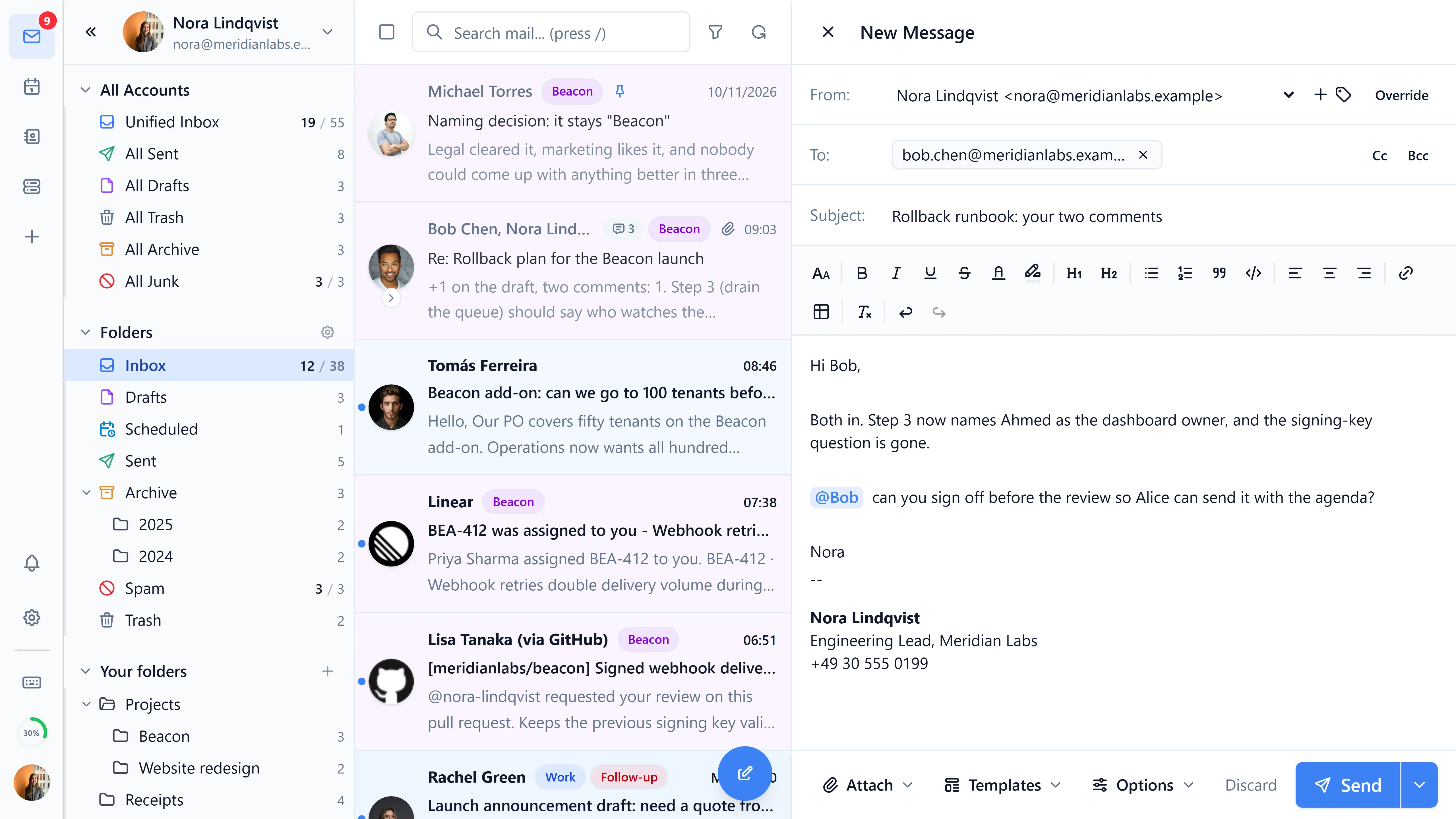
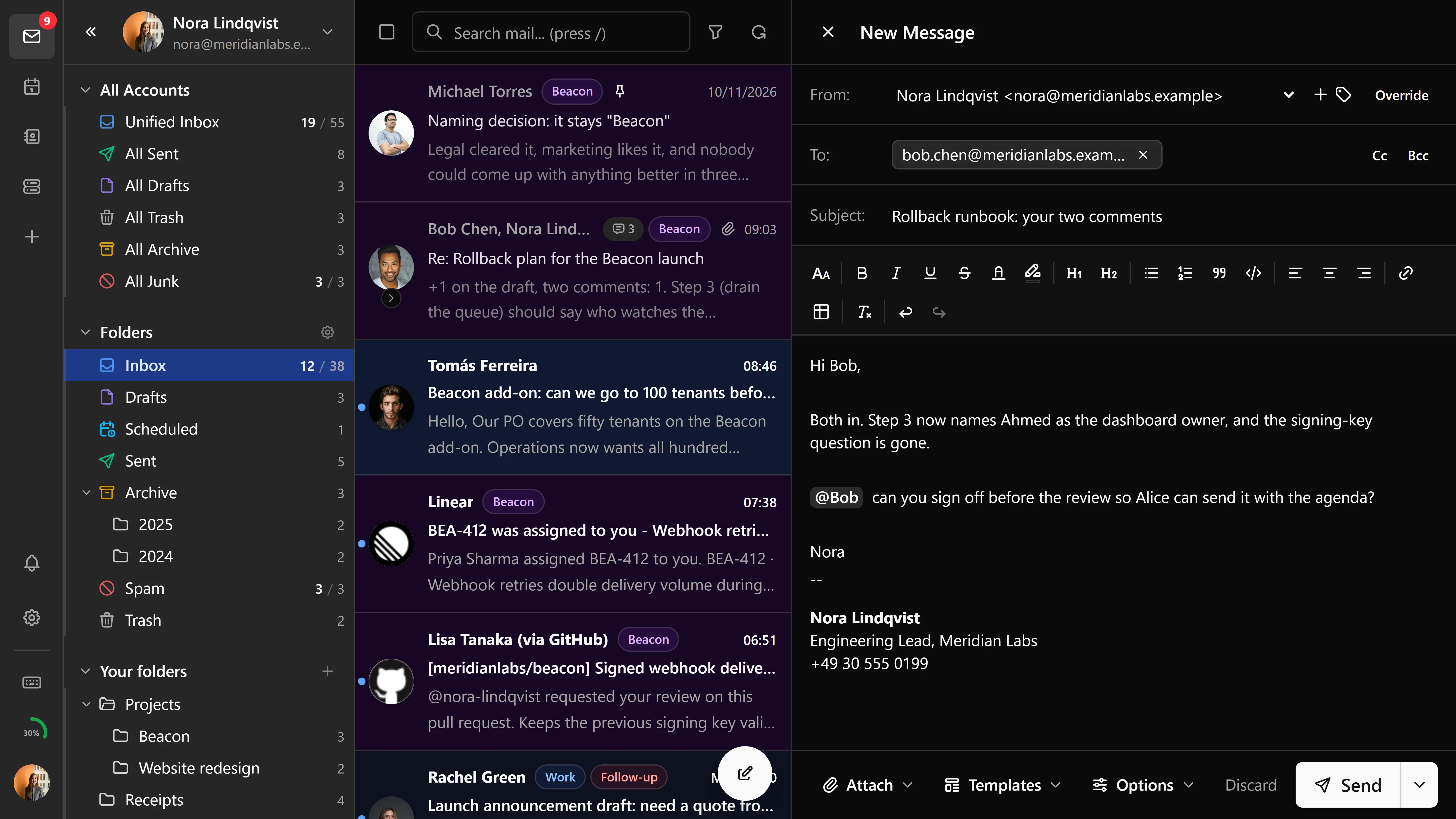
Rich text editor
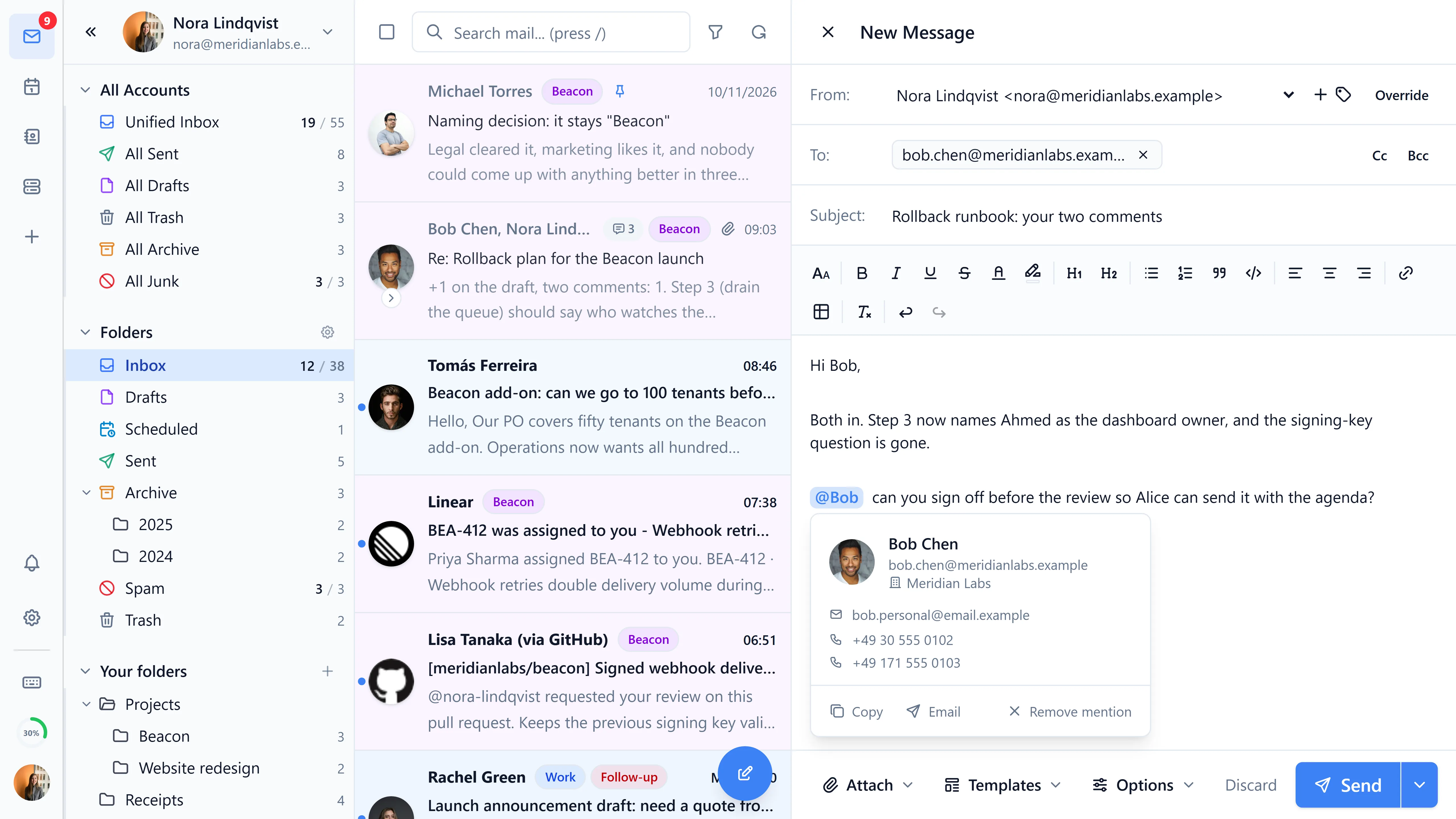
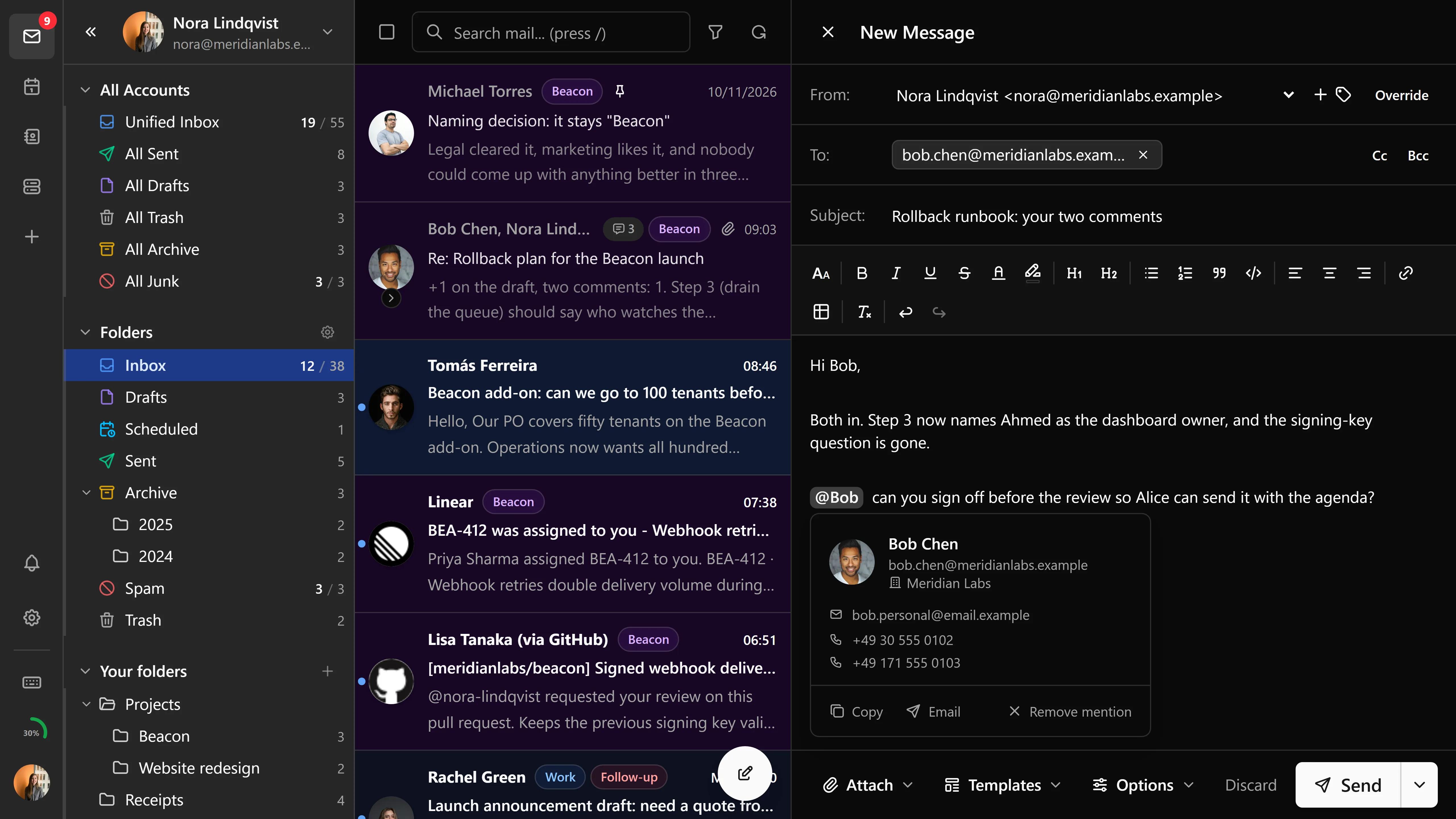
The formatting toolbar stays pinned to the top of the editor while a long message scrolls, and the address and subject fields stay above it. The editor supports full formatting:
- Bold, italic,
strikethrough, and underline - A font-size picker and text and background colors
- Ordered and unordered lists
- Inline hyperlinks
- Tables (insert and edit)
- Block quotes
- Code blocks
- Inline images with a resizable image component (embedded as data URLs so drops don't duplicate attachments)
Identity selection
Choose which sender identity to use from the dropdown in the composer. Each identity can have its own name, email address, and signature. The identity manager refreshes from the server after create, update, and delete operations so the composer stays in sync with server-side changes.
Auto-select reply identity
On a reply, Bulwark can pick the identity matching the address the original was sent to. Turn it on in settings, and choose whether a match means the exact address or any address on the same domain.
Reply-to addresses
Configure reply-to addresses in the composer to direct replies to a different address than the sender identity.
From-header override and catch-all auto-reply
When you own a catch-all domain, replies to mail sent to an arbitrary alias (e.g. marketing@yourdomain.com) should come back from the same alias - even when it isn't a configured identity. Bulwark detects this and pre-fills the alias as the From header in the composer. You can still override the From header manually before sending.
Signature position
Each identity can choose whether its signature appears above or below quoted text on a reply or forward. The default fallback is the primary identity's signature. The setting is searchable from the email behavior settings.
Composer modes
There are two composer modes:
- Rich text - Full formatting with the rich text editor (default)
- Plain text only - A simplified plain text composer for users who prefer unformatted emails
The composer mode can be configured in email settings.
Attachments
- Drag and drop files onto the compose window
- Click the attachment button to browse
- Maximum file size is determined by your Stalwart configuration
- Each attachment chip shows real byte progress while it uploads, and cancelling aborts the transfer rather than just hiding the chip
- Inline images can be pasted directly from the clipboard
- Resizable image component for adjusting inline image dimensions
- Direct image upload support in the rich text editor
- Forgotten-attachment warning - if the body mentions "attachment", "attached", etc. but no file is attached, Bulwark warns before send
Signatures
Set up multiple signatures via identity management:
- Each identity has its own signature
- Signatures are automatically appended based on the selected identity
- Switch identities (and signatures) using the dropdown in the composer
Templates
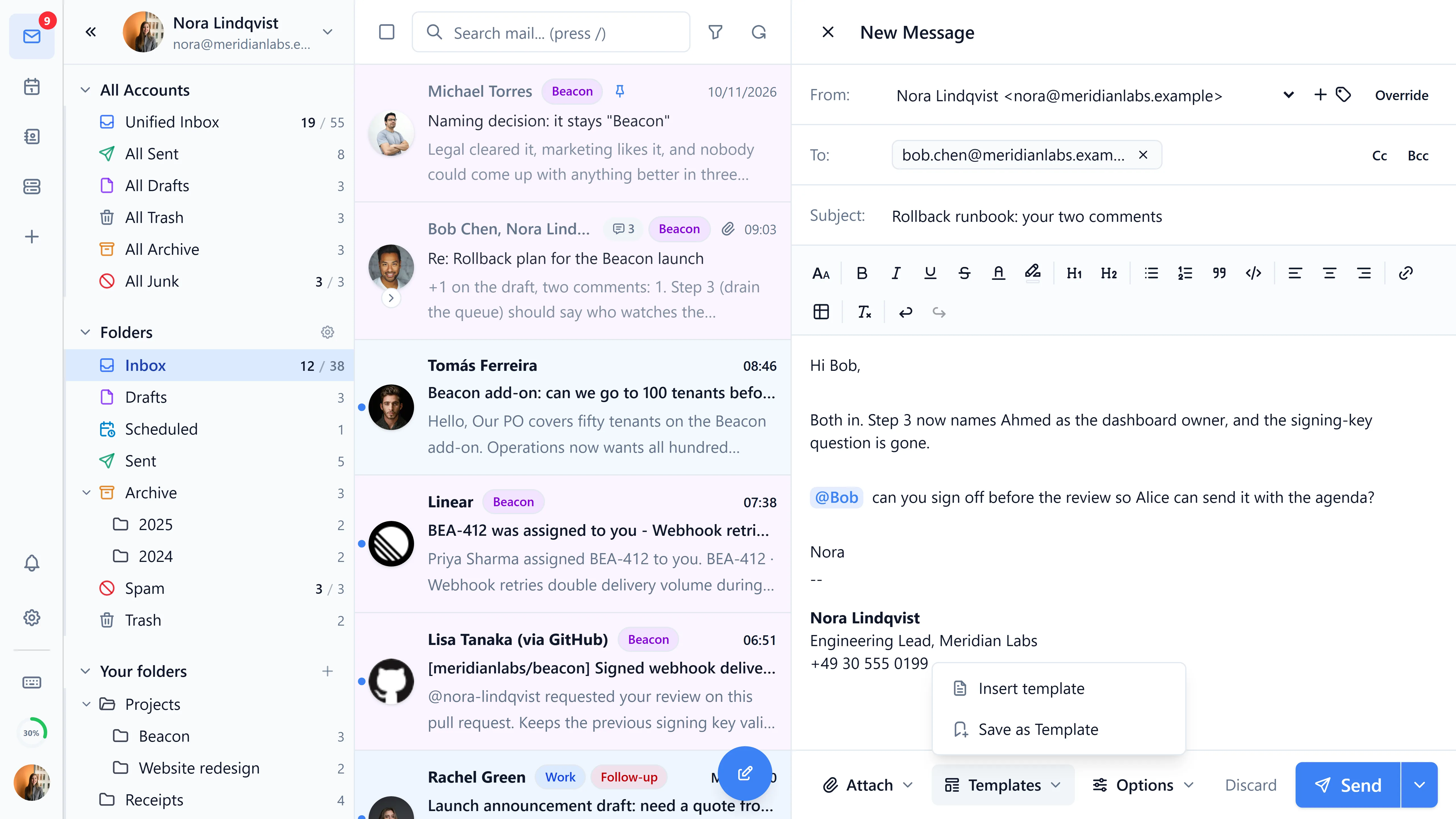
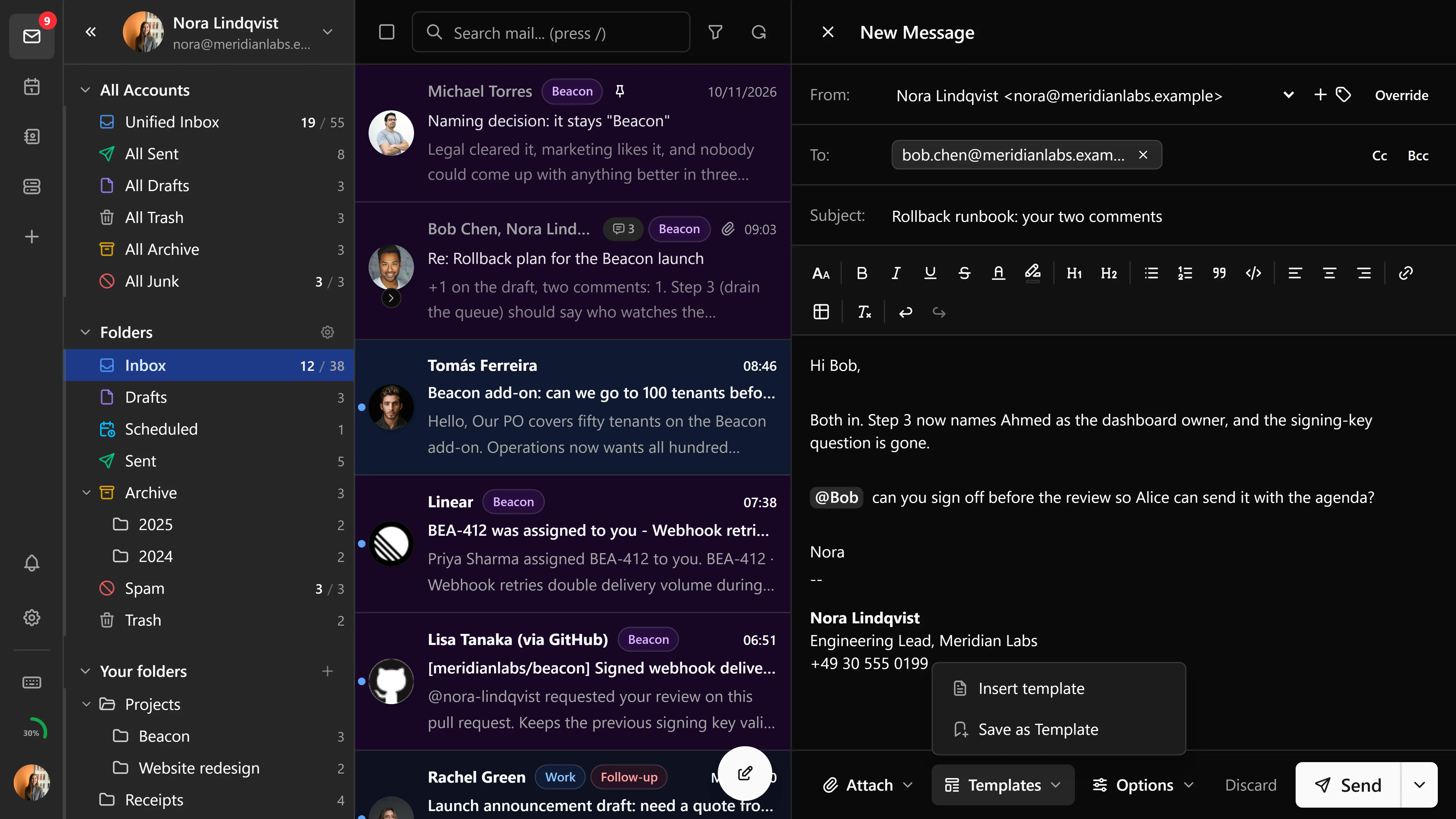
Insert reusable email templates from the compose toolbar:
- Browse templates by category with search and filter
- Placeholder variables (e.g.
{{recipientName}},{{date}}) are auto-filled from composer context - Custom placeholders prompt for input on insertion
- Press
tto open the template picker, as long as focus isn't in a text field - Manage templates from Settings
S/MIME compose controls
- Enable or disable signing per message when an S/MIME identity certificate is available
- Enable encryption when every recipient has a known public certificate
- Unlock protected keys on demand from the composer without leaving the draft
- Keep default signing and encryption preferences in the S/MIME settings panel
Delivery options
Next to the read-receipt request, the send menu can ask the receiving server for a delivery status notification (DSN), and can mark the message REQUIRETLS so it is never relayed over a connection without TLS. Both ride on the JMAP submission; whether the far end honours them is up to that server.
Drafts
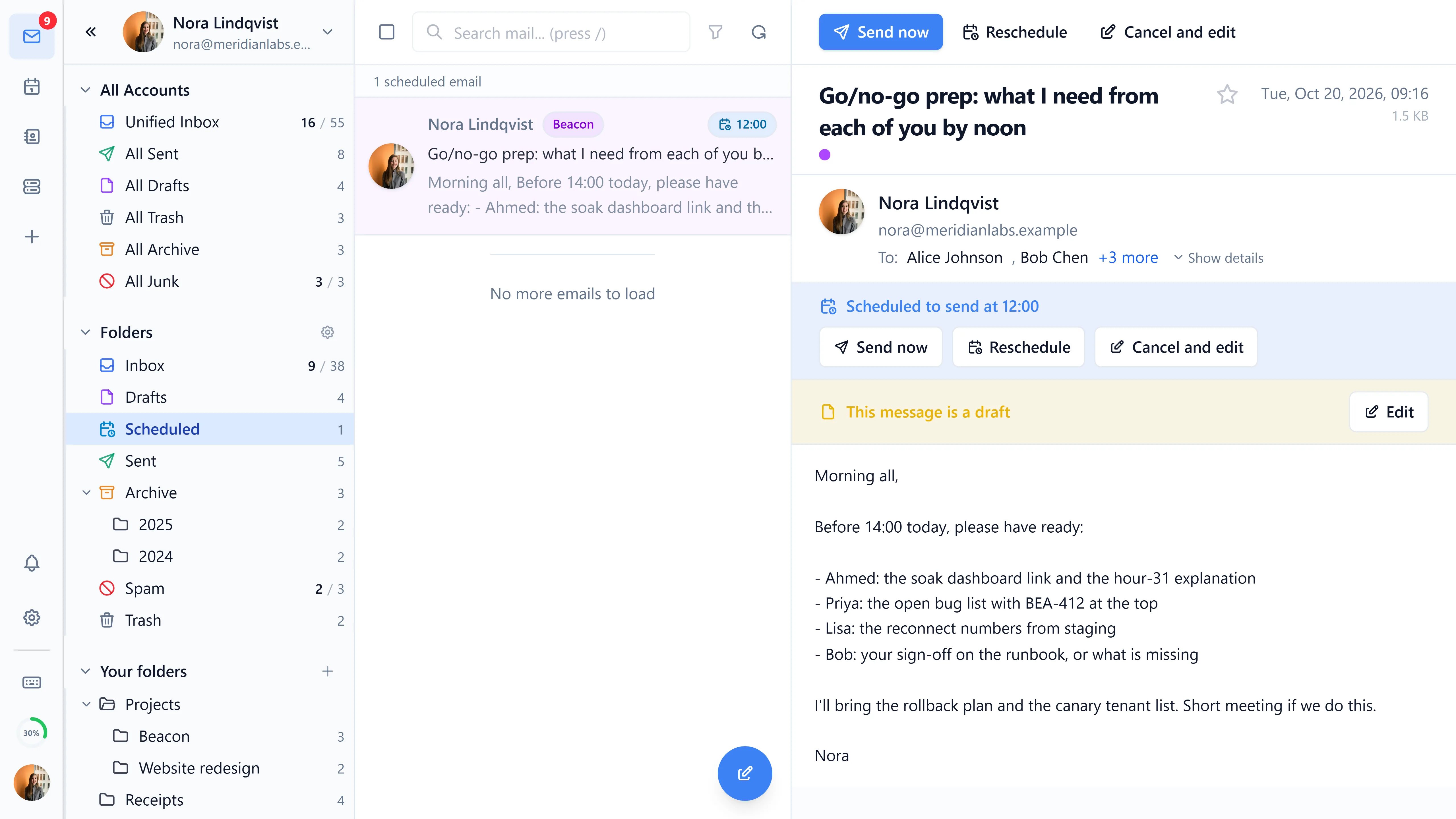
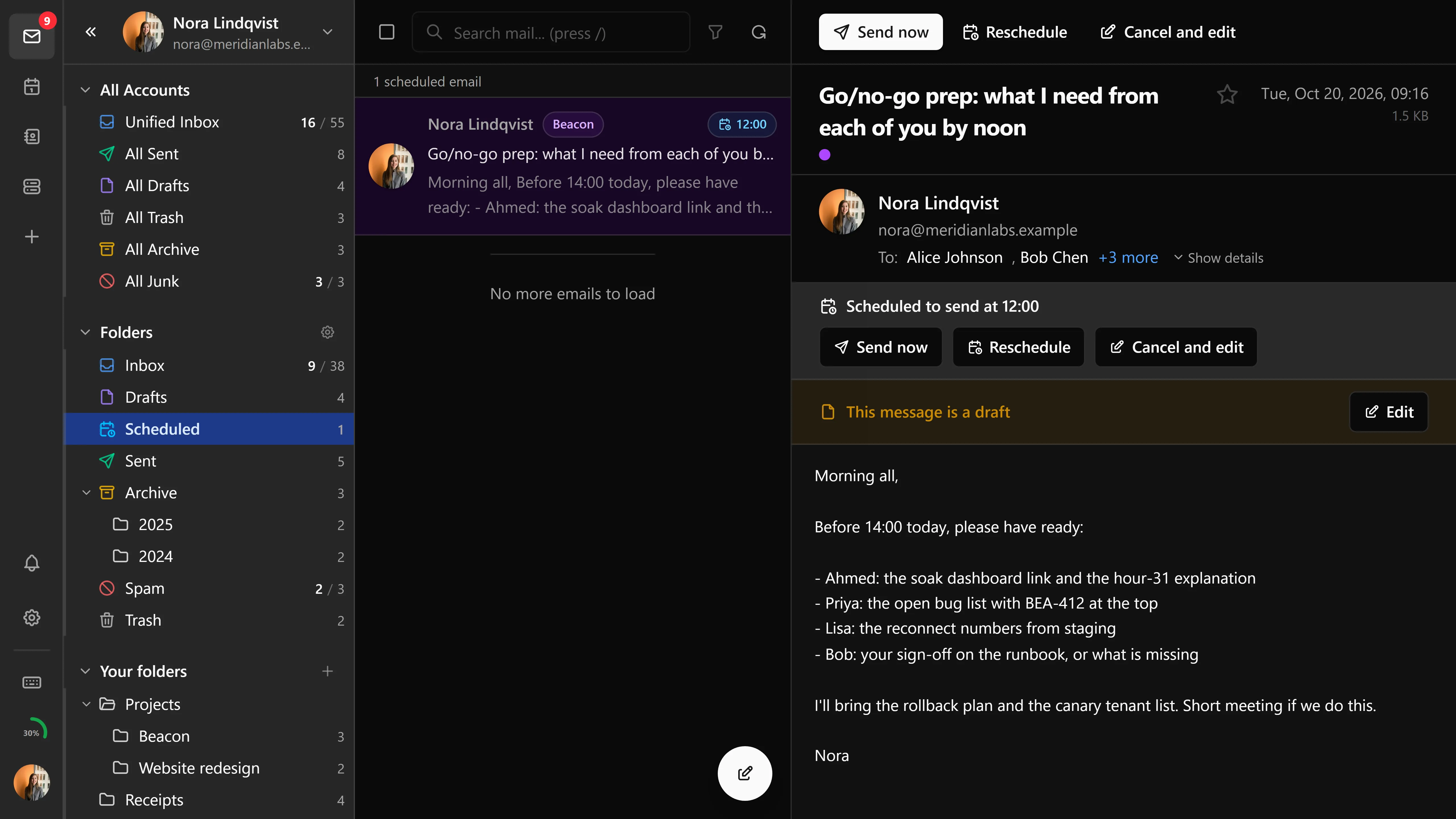
Drafts save themselves every 60 seconds, and the interval is adjustable in settings. They sync across devices over JMAP, and closing an unsaved draft asks for confirmation first.
Click a draft in the Drafts folder to resume it: content, recipients, attachments, and the identity you had selected all come back.
Keyboard shortcuts
| Shortcut | Action |
|---|---|
Ctrl/Cmd+Enter | Send |
Ctrl/Cmd+Shift+Enter | Schedule send |
t | Open template picker |
Escape | Close the composer |