Admin dashboard
The admin dashboard runs inside the same process as the user-facing app, and it is where an operator does everything that isn't reading mail. Runtime configuration lives there, along with plugins and themes, the extension marketplace, Stalwart API keys, the IP allowlists on app passwords, and the audit log. All of it sits on one tabbed page behind a single URL.
config.json file next to index.html, and an optional policy.json for the settings policy. See static hosting.First-time setup
The web setup wizard runs on first launch and sets the initial admin password along with JMAP, OAuth, branding, and the session secret. Point a browser at the running container and follow the steps; nothing needs to be in .env.local beforehand.
ADMIN_PASSWORD in the environment is a bootstrap value for env-driven deployments: it is read only while admin.json does not exist yet, then hashed and written there. Once a password exists, change it from the dashboard.
File-based secrets
For Docker / Kubernetes secret mounts, the JSON config supports pointing at a file instead of inlining the secret. Set these keys in admin.json (ADMIN_CONFIG_DIR/config.json) to the path of a file holding the value:
passwordHashFile- admin password hash (alternative to inlinepasswordHash)sessionSecretFile- session secret (alternative toSESSION_SECRET/SESSION_SECRET_FILE)oauthClientSecretFile- OAuth client secret (alternative toOAUTH_CLIENT_SECRET/OAUTH_CLIENT_SECRET_FILE)
Admin storage split
Admin data lives in two directories, so the operator-authored config volume can be remounted read-only once the wizard has finished:
ADMIN_CONFIG_DIR=/app/data/admin        # config.json, policy.json, plugins, themes, branding uploads
ADMIN_STATE_DIR=/app/data/admin-state   # audit log, login timestamps, setup token
ADMIN_CONFIG_READONLY=true              # optional: produce clean errors instead of EROFS
Both default to subdirectories of ./data. Existing pre-1.6.4 installs using the legacy single ADMIN_DATA_DIR continue to work without migration.
volumes:
  - bulwark-config:/app/data/admin            # rw during setup
  # - bulwark-config:/app/data/admin:ro       # ro after the wizard completes
  - bulwark-state:/app/data/admin-state       # always rw
Without a persisted volume, every restart loses the password hash and a new random admin password is generated and logged.
Signing in
The admin dashboard lives at /admin (or /<locale>/admin). It uses a separate session from the user app, so you can be signed in as both a regular user and an admin in the same browser.
What a Stalwart administrator account is worth here is configurable, under Authentication in the dashboard or with STALWART_ADMIN_ACCESS:
| Value | Effect |
|---|---|
auto (default) | Stalwart admins see the admin shield in the app and are signed into /admin without the Bulwark admin password |
password | Stalwart admins see the shield but must enter the Bulwark admin password like everyone else |
off | Stalwart admin status is ignored; /admin is reachable only through /admin/login with the admin password |
password and off need an admin password to exist, from the wizard or ADMIN_PASSWORD, or the dashboard would have no way in.
Admin sessions are protected with:
- Strict session secret length validation
- Configurable TTL via
ADMIN_SESSION_TTL - Configurable trusted-proxy depth via
TRUSTED_PROXY_DEPTHfor accurate client IP attribution - All admin actions are written to the audit log
Sections
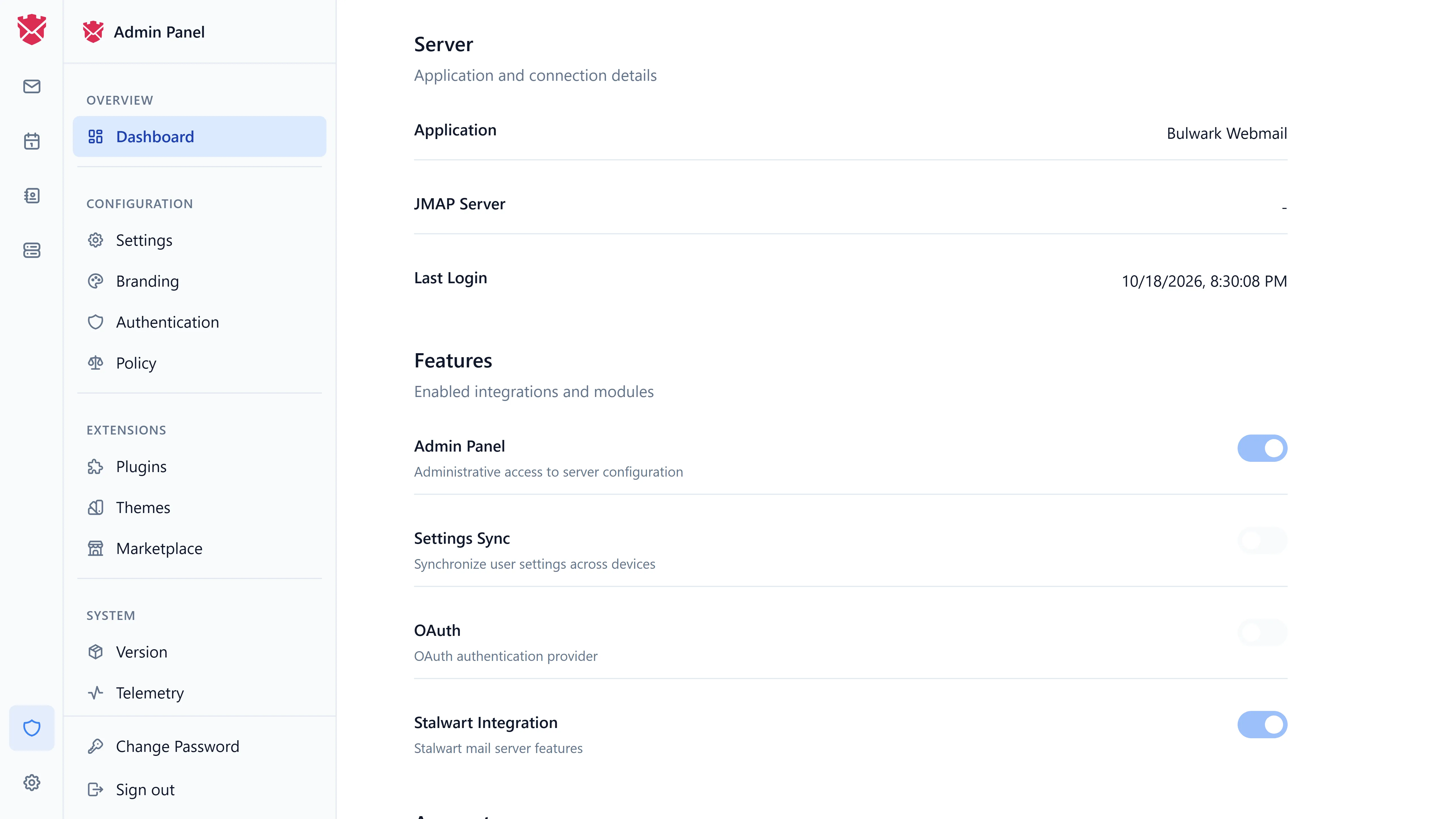
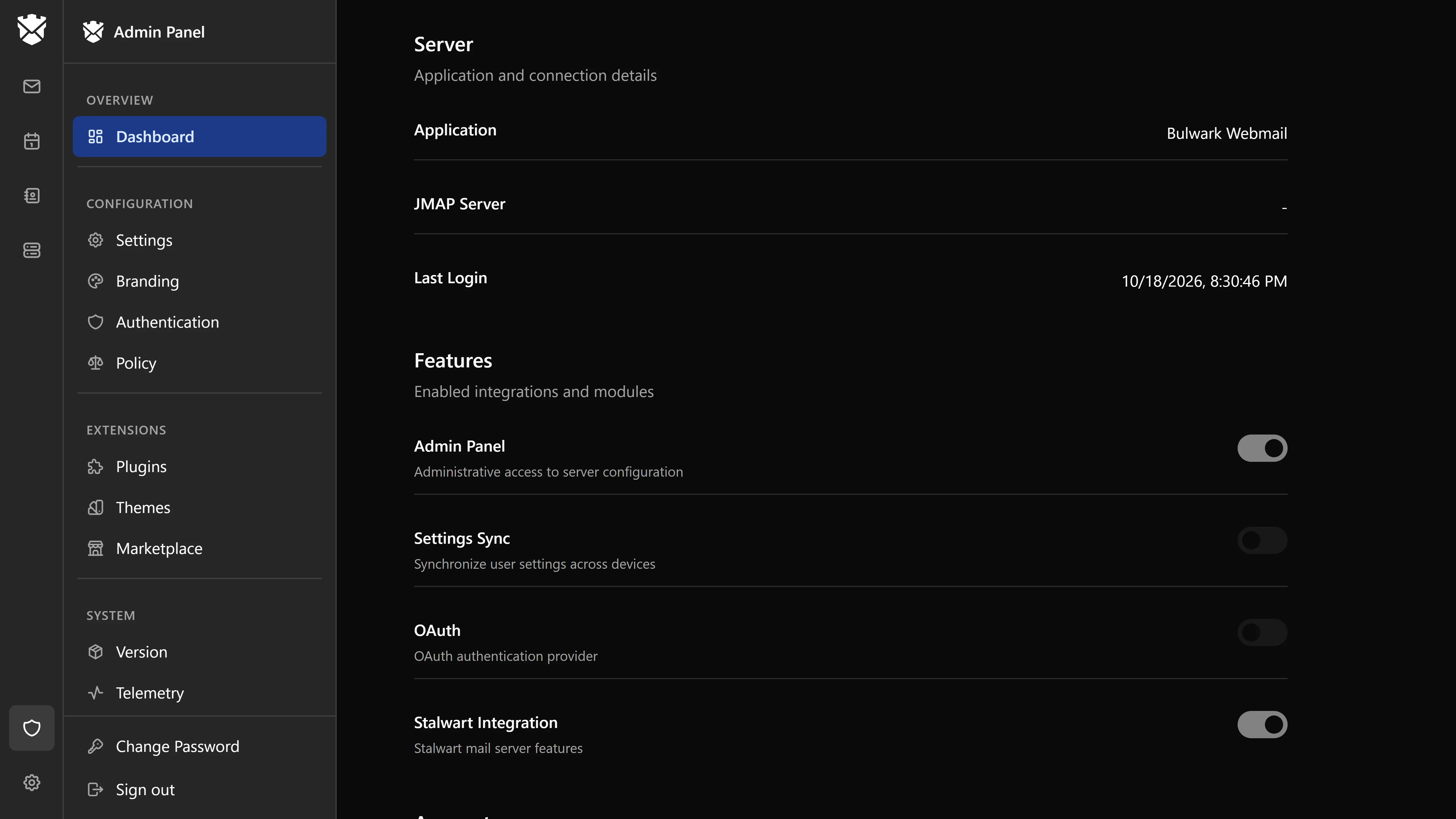
The sidebar groups the sections: Dashboard; Settings, Branding, Authentication and Policy under Configuration; Plugins, Themes and Marketplace under Extensions; Version and Telemetry under System.
Overview
Server details (application name, JMAP server, last admin login) and which integrations are enabled: the admin panel itself, settings sync, OAuth, and the Stalwart integration.
Configuration
Override runtime config without redeploying. The admin dashboard writes to ADMIN_CONFIG_DIR/config.json (same file the setup wizard populates). Admin-managed values fill these keys:
appNamejmapServerUrl, plus thejmapServerslist for multi-server deploymentsoauthEnabled,oauthOnly,oauthClientId,oauthIssuerUrlstalwartFeaturesEnabled, and separatelystalwartJmapPassthroughEnabled, the server-side switch for the credential-bearing Stalwart JMAP passthrough. Turn it off to keep the client features but block the passthrough route entirely (env:STALWART_JMAP_PASSTHROUGH_ENABLED)stalwartAdminAccess(see above)settingsSyncEnabled- The push relay, picked from an admin-defined list rather than typed as a free URL
- Default sidebar apps that every user gets, in addition to the ones they pin themselves
allowedFrameAncestorsparentOrigin- Branding (favicon, app and login logos, login company info)
- Demo mode
allowCustomJmapEndpointautoSsoEnabledsearchEngineIndexing- allow search engines to index the webmail. Off by default (emitsnoindex/nofollowin the page head); recommended off for private deployments. Env override:SEARCH_ENGINE_INDEXING.
Order of precedence: admin config > env var > legacy build-time fallback > built-in default. A value saved here wins over the same key in .env.local; the dashboard shows where each value currently comes from (admin, environment, or default). Changes from the admin UI take effect on the next user session without a restart.
Plugins
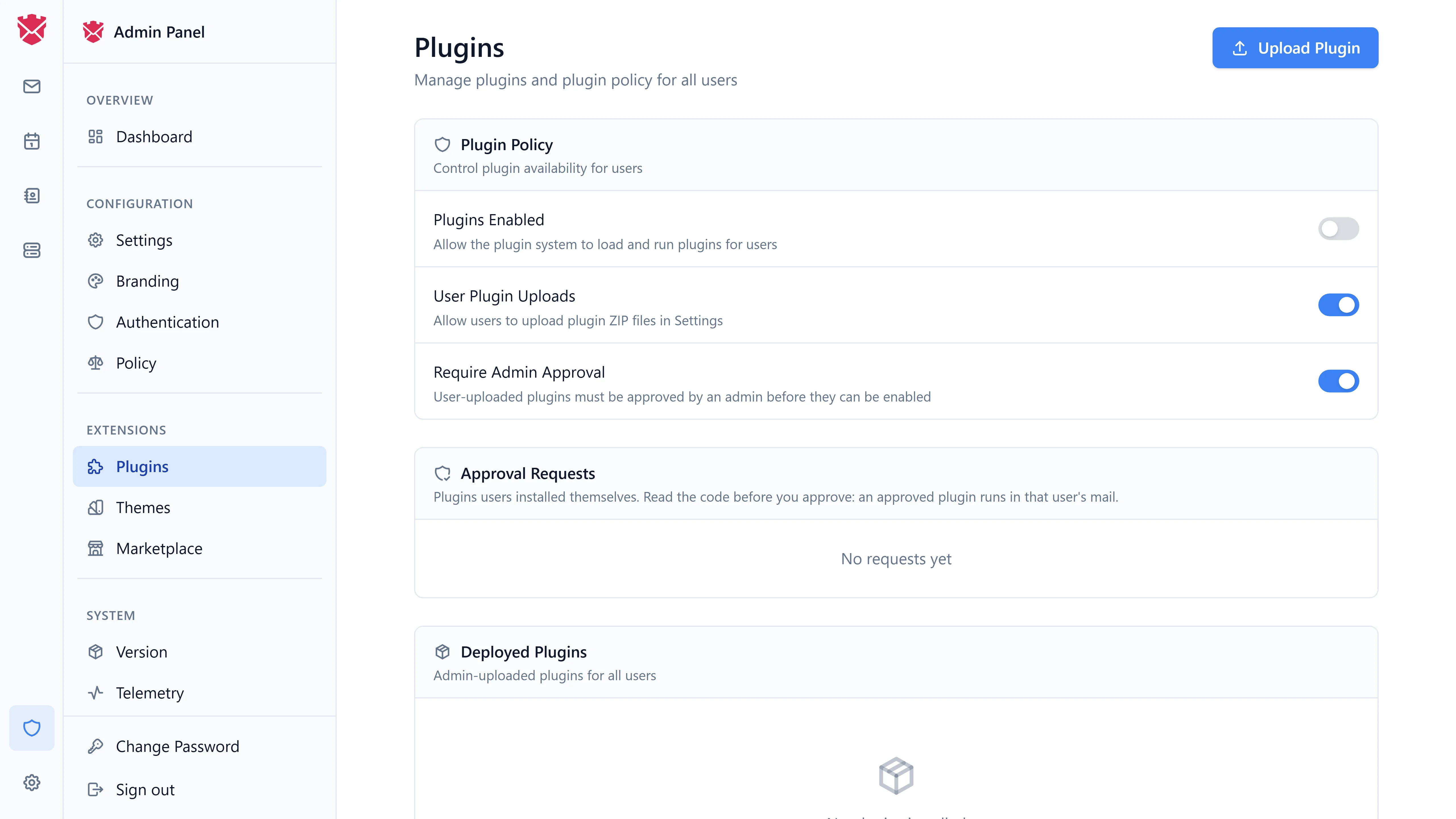
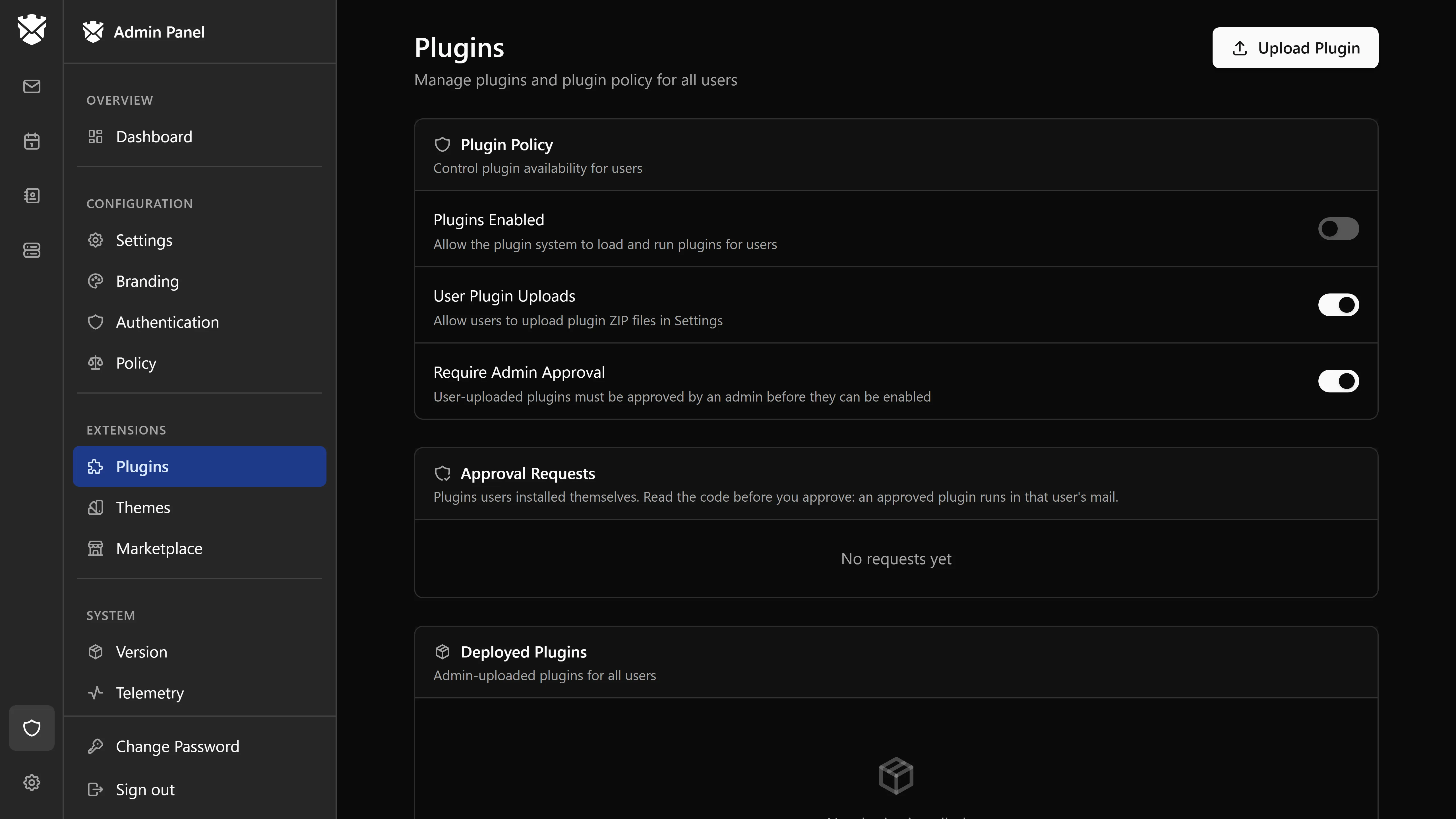
- Browse the marketplace (when
EXTENSION_DIRECTORY_URLis set) or upload ZIPs directly. Install and uninstall are restricted to the admin dashboard. - Force-enable or force-disable plugins for all users.
- Lock plugin settings (admin locks) so users cannot override them.
- Apply managed policy across the whole deployment.
- Review each plugin's manifest, declared permissions,
frameOrigins, andhttpOrigins. - Inline plugin config panel - configure without leaving the page.
- Hot-reload and
PLUGIN_DEV_DIRdev-folder loading for live plugin development (esbuild bundlessrc/on demand).
See Plugins for the full architecture.
Themes
- Upload theme ZIP bundles. Install and uninstall are restricted to the admin dashboard.
- Force-enable or force-disable themes.
- Lock the theme (e.g., enforce a corporate dark theme).
- Theme API v2, with a token compiler and a skin slot.
API keys (Stalwart 0.16.6+)
- Create, list, and revoke Stalwart API keys.
- Each key is shown once at creation; revoke and recreate if you lose it.
- Used for scripting, monitoring, and anything else that talks to Stalwart directly.
App password policy (Stalwart 0.16.6+)
- Manage IP allowlists per app password.
- Restricts an IMAP/SMTP credential to a specific datacenter or VPN.
Audit log
Every admin action - sign in, plugin enable/disable, config change, theme upload, API key creation - is recorded. The log shows actor, action, target, and IP (after TRUSTED_PROXY_DEPTH resolution).
Policy sections
Stalwart-specific policy areas surfaced in the dashboard, including authentication policy and OAuth client configuration. Available when STALWART_FEATURES=true and Stalwart 0.16.6 or newer is connected.
OAuth auto-setup
Where the Stalwart server supports it, a dialog validates the origin and issuer URLs and configures the OAuth client end to end, which gets SSO working without hand-editing config.
Telemetry
The Anonymous usage stats section shows the exact JSON the next heartbeat would send, lets you toggle telemetry on or off, fire a heartbeat immediately for testing, change the endpoint, and view "Last sent" timestamps. Setting BULWARK_TELEMETRY in the environment, to either value, locks the choice and greys out the toggle. See Anonymous usage stats for the full schema.
Behind a reverse proxy
If Bulwark sits behind multiple reverse proxies, set TRUSTED_PROXY_DEPTH so audit logs and rate-limiting see the real client IP:
TRUSTED_PROXY_DEPTH=2 # CDN -> ingress -> app
Restricting access
The dashboard is part of the running Bulwark process, so it cannot be turned off. Restrict it instead:
- Block
/adminand/api/adminat your reverse proxy and only allow your management network. - Use a strong
ADMIN_PASSWORDand rotate periodically. - Keep it off the public internet in production. A VPN or an IP allowlist is the right gate.
Troubleshooting
"Admin password reset on restart"
You haven't mounted a persistent volume for ADMIN_CONFIG_DIR (or ADMIN_DATA_DIR on legacy installs), so the password hash file is lost on container recreation. Mount the volume and either rerun the setup wizard or (re)set ADMIN_PASSWORD.
"Account security / API keys / app password panels missing"
These require Stalwart 0.16.6 or newer. Stalwart versions before 0.16 do not expose the JMAP x: methods Bulwark uses for self-service management.
"Admin login fails with correct password"
Check that SESSION_SECRET hasn't changed since you last signed in (which would invalidate stored sessions) and that the admin data directory is on a writable filesystem.